
Build launch videos from the command line with brag
You shipped a project. Now you need to show it off. Normally that means a screen recorder, a video editor, and an afternoon. With the brag CLI skill for Claude Code, you run one command and get a rendered MP4 with music, motion, and share copy in under a minute. /brag is built on HyperFrames, HeyGen's open-source video framework released under the Apache 2.0 license — meaning you can use it, modify it, and ship commercial videos with it at no licensing cost and no usage thresholds. This guide covers installation, running brag on a real repo, understanding the output, converting the result to a shareable GIF with ffmpeg, and steering the output with tone flags.
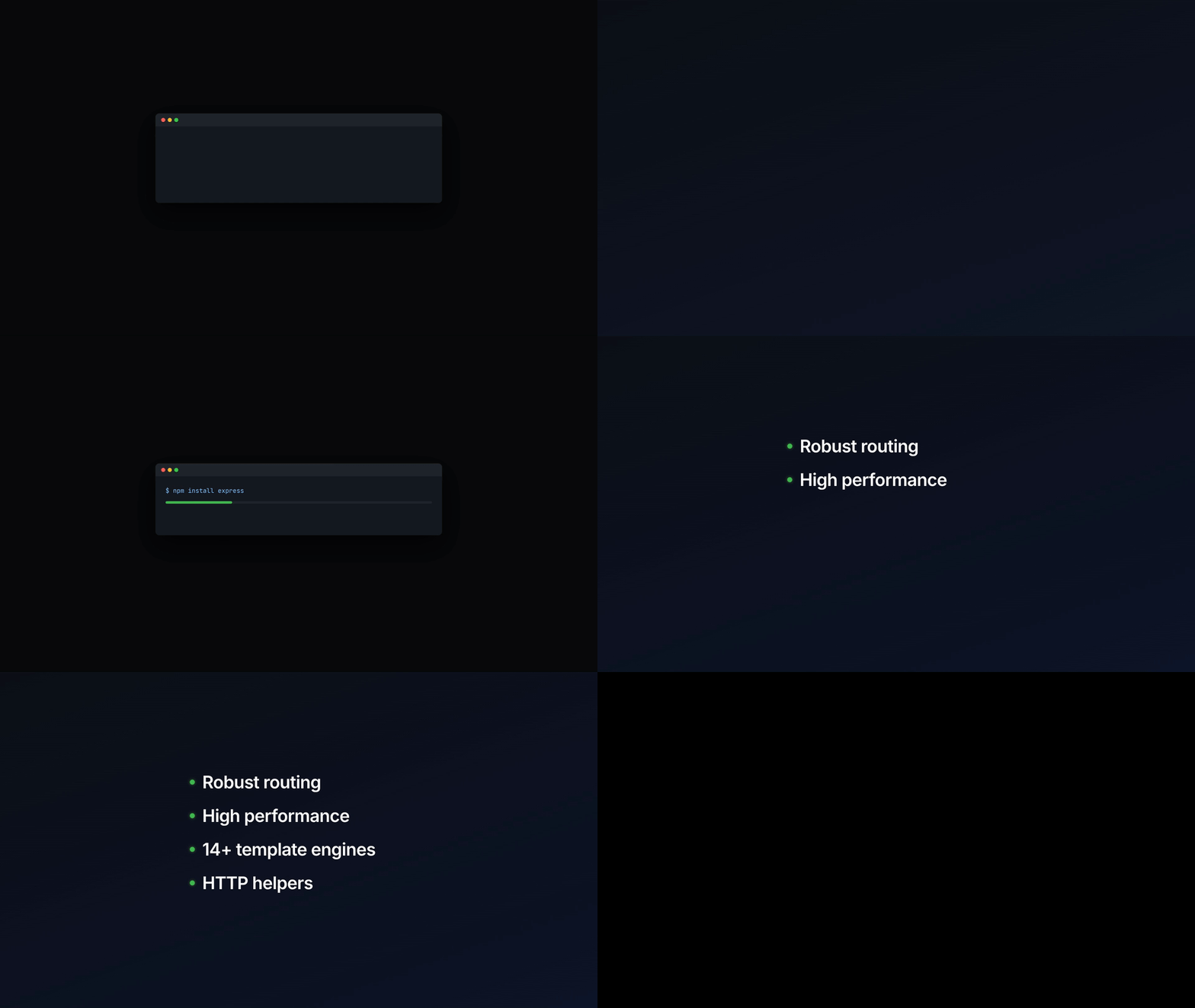
What brag does
/brag and HyperFrames have a clear division of labour. /brag owns the story: the product angle, tone, and which moments to show. It hands a focused brief to HyperFrames, which builds, times, and renders the video. You never need to touch HyperFrames directly.
The process runs in four steps. First, brag reads your project code to understand the app. Second, it plans a concept, writes a storyboard, and saves it as brag-plan.md. Third, it passes a composition brief to HyperFrames, which assembles and lints the animation. Fourth, brag validates the result, renders the video, and writes the share copy. Each step has a gate: the render does not start until npx hyperframes lint passes with zero errors.
You get a brag-output/ folder with the plan, a composition brief, share copy, and the rendered brag.mp4.
Requirements
Before installing brag, make sure you have the following:
Note: Node.js 18 and below will not work. Run
node --versionto check.
Install brag
Install via the plugin marketplace (recommended)
Run these two commands inside Claude Code:
/plugin marketplace add latent-spaces/brag
/plugin install brag@brag
Then run /brag inside any project directory.
Install manually without the plugin system
If you are on an older Claude Code version without plugin support, install the skill directly. First clone the brag repo, then copy the skill files:
rsync -a --exclude '.DS_Store' skills/brag/ ~/.claude/skills/brag/
Restart Claude Code after copying.
Run brag on a real project
Clone a project and run brag
Express is a good demo target: it is small, well-known, and has a clear README.md and package.json that brag can read. Clone it and navigate in:
git clone https://github.com/expressjs/express.git
cd express
Then invoke brag inside Claude Code:
let's /brag
Claude reads your project files in priority order: index.html first (for headline, tagline, and voice), then styles.css or equivalent (for colour palette and fonts), then README.md (for project name and features), then package.json. For Express, it reads README.md and package.json to extract the project name, one-line description, and key feature names.
Internally, brag answers a nine-question planning rubric before writing a single line of the storyboard. The questions cover what the app does, what its strongest visual hook is, what tone fits best, what the share caption should say, and what the key user flow is. The answers drive the storyboard, which targets 15 to 25 seconds total.
What brag produces
After the run, brag-output/ contains:
brag-output/
  brag.mp4              — the rendered video
  brag-plan.md          — the plan and storyboard brag wrote
  composition-brief.md  — the HyperFrames handoff brief
  share-copy.txt        — the share caption
  composition/          — the HyperFrames project
    index.html
    DESIGN.md
    ...
brag.mp4 is the finished video. brag-plan.md shows exactly how brag reasoned about your project, which is useful to read when you want to steer the next run. composition-brief.md is the handoff document that tells HyperFrames what to build. share-copy.txt is a one-sentence caption ready to paste into Twitter, LinkedIn, or a README.
Convert the output video to a GIF with ffmpeg
GIFs embed directly in GitHub READMEs, Markdown documentation, and blog posts without requiring a video player. The standard two-pass approach with palettegen and paletteuse produces a much sharper result than a single-pass conversion because ffmpeg builds an optimal colour palette for the specific video first.
Step 1 extracts the palette:
# Step 1: extract a colour palette for high-quality dithering
ffmpeg -i brag-output/brag.mp4 -vf "fps=15,scale=960:-1:flags=lanczos,palettegen" palette.png
Step 2 renders the GIF using that palette:
# Step 2: render the GIF using the palette
ffmpeg -i brag-output/brag.mp4 -i palette.png \
  -filter_complex "fps=15,scale=960:-1:flags=lanczos[x];[x][1:v]paletteuse" \
  brag-output/brag.gif
The key flags: fps=15 keeps motion smooth without bloating the file size. scale=960:-1 halves a 1920px-wide video while preserving the aspect ratio. flags=lanczos uses a high-quality resampling algorithm. The palettegen/paletteuse pair is the two-pass approach: the first pass analyses the full video to build an optimal 256-colour palette, and the second pass uses that palette for better colour accuracy than a single-pass conversion. The resulting brag-output/brag.gif can be dropped into any README or embedded in an article.
Steer the output with tone and flags
The seven built-in tone presets
By default, brag infers a tone from your project. You can override it with --tone followed by a preset name or any freeform creative description.
Tone can be a preset or a freeform creative direction such as "fake Series A launch from 2016", "museum exhibit", or "overproduced mobile game ad". When you give freeform tone direction, brag maps it to the nearest preset for pacing and structure but preserves your direction in the plan and composition brief.
/brag --tone "fake Series A launch from 2016"
Other CLI flags
Use --format vertical for a short intended for Instagram Reels or TikTok. Use --no-music if you are embedding the video somewhere that already has audio.
Run brag again without overwriting previous output
If brag-output/ already exists when you invoke brag, it creates a timestamped directory automatically:
brag-output-2026-06-25-143022/
brag-output-2026-06-25-151807/
This means you can iterate freely: try polished on one run, chaotic on the next, and compare the results without losing anything. The timestamp is generated at the start of the run and used consistently for every output path in that run, including the plan, brief, composition, render, and share copy.
How brag compares to other Claude Code video skills
A dev.to comparison of Claude Code video skills covers six tools: Remotion, HeyGen, inference.sh, Pexo, Higgsfield, and digitalsamba's Video Toolkit. Each solves a different problem. brag is not in that list, but it fills a gap none of the six tools cover. It reads your project source code directly and produces a launch video with no URL, no screenshots, and no prompt engineering required.
brag is the right pick when you have a project in your terminal right now and want a shareable video in one command.
Troubleshoot common issues
Check your setup with hyperframes doctor
If anything goes wrong, run the diagnostic command first:
npx hyperframes doctor
This validates your Node.js version, FFmpeg availability, and the HyperFrames CLI installation.
brag writes a plan but the render fails
The most common failure mode is a lint error in the HyperFrames composition. When this happens, Claude attempts to fix it automatically. If the render loop gets stuck, check the brag-output/composition/ directory and run npx hyperframes lint manually to see the specific errors:
cd brag-output/composition
npx hyperframes lint
npx hyperframes lint runs static checks: track overlaps, unregistered timelines, and missing IDs. If lint passes but the render still fails, run npx hyperframes validate to check for WCAG contrast errors and console errors in headless Chrome. The gate before render requires lint to pass with zero errors, so fixing all lint issues first is the fastest path to a successful render.